

For most people buying or fixing a home computer in Des Moines, I recommend 16GB of RAM. That's enough for everyday multitasking, such as email, a browser full of tabs, video calls, Microsoft Office, and family photos, with room to grow. An 8GB model can still suit light use, but it leaves less headroom. 32GB is a sensible starting point for video editing and demanding new games.
Getting the number right matters more this year than usual. Memory prices have climbed steeply through 2026, so guessing high costs real money, and guessing low on a laptop can't always be undone later.
How Much RAM Do I Need? The Quick Answer
Find the row that matches your heaviest regular task, not your lightest. If your computer slows down when you open a large photo library, check memory usage during that task before deciding whether a RAM upgrade will help.
| RAM | Good for | Verdict for a new computer |
|---|---|---|
| 8GB | Email, browsing, and streaming | Can suit light use, but leaves little headroom |
| 16GB | Office work, schoolwork, video calls, photo editing, and most games | My recommendation for most households |
| 32GB | Video editing, new AAA games, large photo batches, several heavy programs at once | A starting point for demanding work |
| 64GB and up | Large video projects, 3D work, and engineering software | For workloads that exceed 32GB |
What RAM Actually Does
RAM is your computer's working space. It holds whatever is open right now: the browser, the Zoom call, the spreadsheet, and Windows itself. Storage is a different thing. That's the 256GB or 512GB figure on the sticker, and it's where your files sit when you aren't using them.
Picture a kitchen. The pantry can be enormous, but if the counter only fits two bowls, every new step means putting something away and fetching it back. A computer short on RAM does the same with its drive, and that constant shuffling is the lag you feel when you switch between windows.
Store listings blur the two often enough that it's worth checking. A laptop advertised as "512GB" is describing its storage. The memory figure is smaller and usually further down the spec sheet.
RAM for Everyday Tasks, Gaming, and Creative Work
The table covers the broad strokes. The detail below helps if you sit between two rows, or if one program in your routine is much heavier than everything else you run.
Email, Browsing, and Video Calls
Light use is where 8GB copes best. Several active tabs and a video call can still put pressure on it, depending on the websites and other apps running at the time. 16GB gives most users more room for multitasking, which is why I suggest it for a new purchase.
Schoolwork and Home Offices
Students and one-person businesses usually run more at once than they realize. A typical afternoon might mean a browser full of research, Word or Google Docs, a PDF, Teams, and a cloud sync app working in the background. 16GB handles that mix comfortably. 8GB can manage it too, with less room before memory runs short.
Family Photos and Light Editing
Adobe lists 8GB as the minimum for Photoshop Elements and recommends 16GB, on Windows and Mac alike. It's a useful example of where consumer photo software sits today. If you shoot RAW on a newer camera and edit big batches at a time, 32GB can be worth it.
Gaming
Microsoft Flight Simulator 2024 lists 16GB as its minimum and 32GB as recommended, while Marvel Rivals asks for 16GB at both tiers. In Valve's September 2026 Steam hardware survey, 32GB passed 16GB as the most common setup among participants, although the survey swings from month to month and only counts people who opt in. A casual player is fine on 16GB. Someone playing new releases with Discord and a stream running alongside should look at 32GB.
Video Editing and Heavy Creative Work
Adobe recommends 16GB for editing HD video in Premiere and 32GB or more for 4K. That makes 32GB a useful starting point for demanding creative work, including DaVinci Resolve and Blender. Larger projects may benefit from 64GB or more, so weigh your project size and actual memory use alongside the software's recommendations.
Is 8GB of RAM Still Enough?
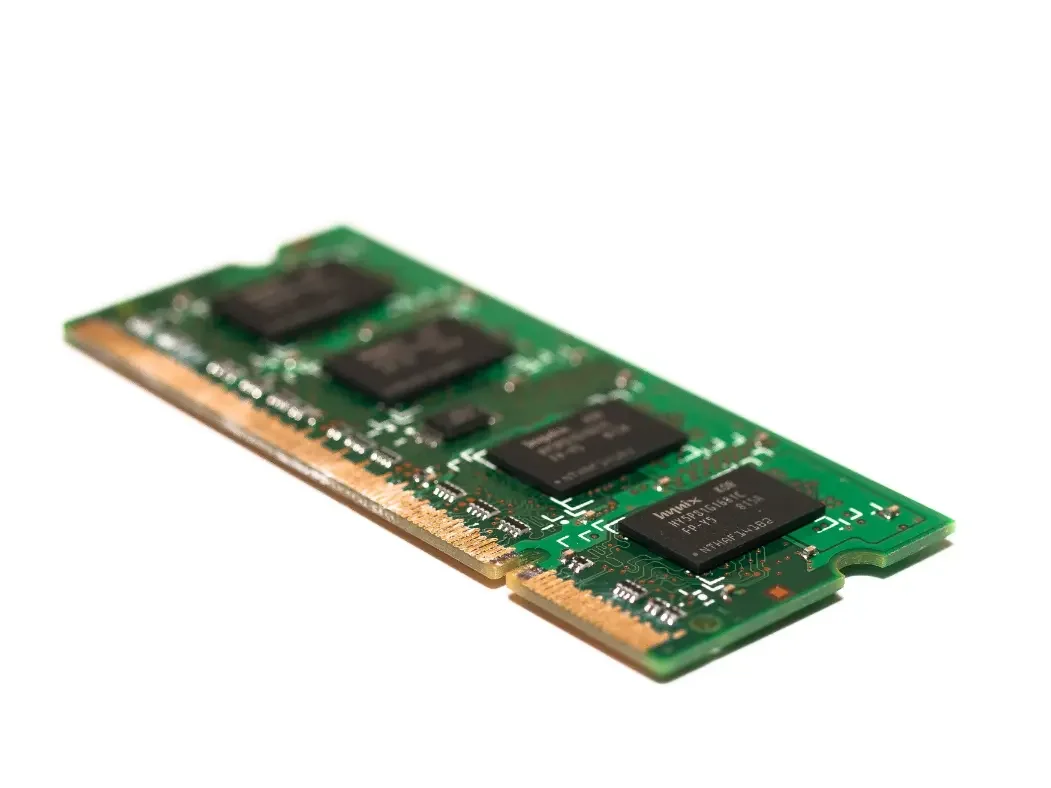
Windows 11 will install on 4GB, but that's the floor for getting it to boot, not a target for daily use. The bigger names in home computing now aim higher.
Microsoft requires 16GB for Copilot+ PCs, the Windows laptops built for its newer on-device AI features. Apple made 16GB standard on the MacBook Air in October 2024, though its lower-priced MacBook Neo still ships with 8GB.
So 8GB machines are still on the shelves, and one can suit someone who mostly emails, browses, and streams. If you want room for heavier work over the next few years, check the memory line on the spec sheet before you pay, especially on a laptop where it can't be upgraded later.
How to Check How Much RAM You Have
Before buying anything, find out what's installed and whether it's actually running out. Both checks take less than a minute.
On Windows
Press Ctrl + Shift + Esc to open Task Manager.
Click Performance, then Memory.
Your total RAM appears at the top right. Under the graph, "In use" shows how much is taken and "Available" shows how much memory Windows can make available to apps.
Look for "Slots used." It can hint at whether an upgrade is possible, but it isn't the final word. Before buying RAM, check your computer's service manual for accessible slots, the supported memory type, and the maximum capacity. DDR4 and DDR5 aren't interchangeable.
One reading tells you little. Open the programs you normally use and work for a while. If available memory stays low and the computer slows down during your usual work, RAM may be a bottleneck. Check which apps are using it before buying an upgrade, and glance at the CPU and disk readings too, since either one can be the real cause.
On a Mac
Open Activity Monitor from Applications, then Utilities.
Click the Memory tab.
Find "Physical Memory" at the bottom. That's the amount of RAM installed.
Watch the Memory Pressure graph beside it. Apple describes green as the Mac using its memory efficiently, yellow as a sign it might eventually need more, and red as a sign it needs more now. If pressure stays yellow or red, check which app is using the most memory before drawing conclusions.
Memory in Apple silicon Macs isn't user-upgradeable, so choose the capacity you'll need when buying.
When More RAM Won't Make Your Computer Faster
If memory remains available while the slowdown is happening, adding more RAM is unlikely to help. Check CPU usage, disk activity, startup programs, and temperatures before spending money on an upgrade.
This breakdown of why your computer is slow separates the causes you can fix yourself from the ones that need a technician.
Upgrade the RAM or Replace the Computer?
On most desktop towers, adding memory is a straightforward parts job, as long as the new sticks match. An open slot is a good sign, but the motherboard still decides which memory type, speed, and maximum capacity it accepts. Laptops are less predictable, because a growing number have their memory soldered to the main board. On those, the amount it shipped with is permanent.
If you're deciding between a desktop and a laptop for your next machine, upgradeability is one of the biggest differences between them.
Read More: Desktop vs Laptop: Which is Better for Home Use?
Why RAM Costs More in 2026
Tom's Hardware's RAM price tracker documents sharp increases in DDR5 and DDR4 prices compared with 2025. Prices and stock change often, so check the cost of a compatible kit before deciding whether to upgrade. AI data centers are buying up memory that used to go into ordinary PCs, and a Gartner analyst told CRN this year that prices may only stabilize in early 2027. On a desktop that only needs 16GB, going to 32GB "just in case" has become an expensive habit. Buy what your heaviest task needs and stop there.
When Upgrading Beats Replacing
Upgrading usually wins when the computer is otherwise healthy, can run Windows 11, and simply runs out of memory under your normal load. Replacing makes more sense when the memory is soldered, the machine is slow for other reasons too, or the upgrade would cost a large share of a new computer.
Adding memory is hands-on work, so the computer comes to me in Clive as part of my computer repair service. It's billed as advanced support, $99 for the first hour and $30 an hour after, with the memory itself charged at what I pay for it. You get the number before I open the case, and the full rates are on my servicing and pricing page.
Buying a New Computer in Des Moines This Year
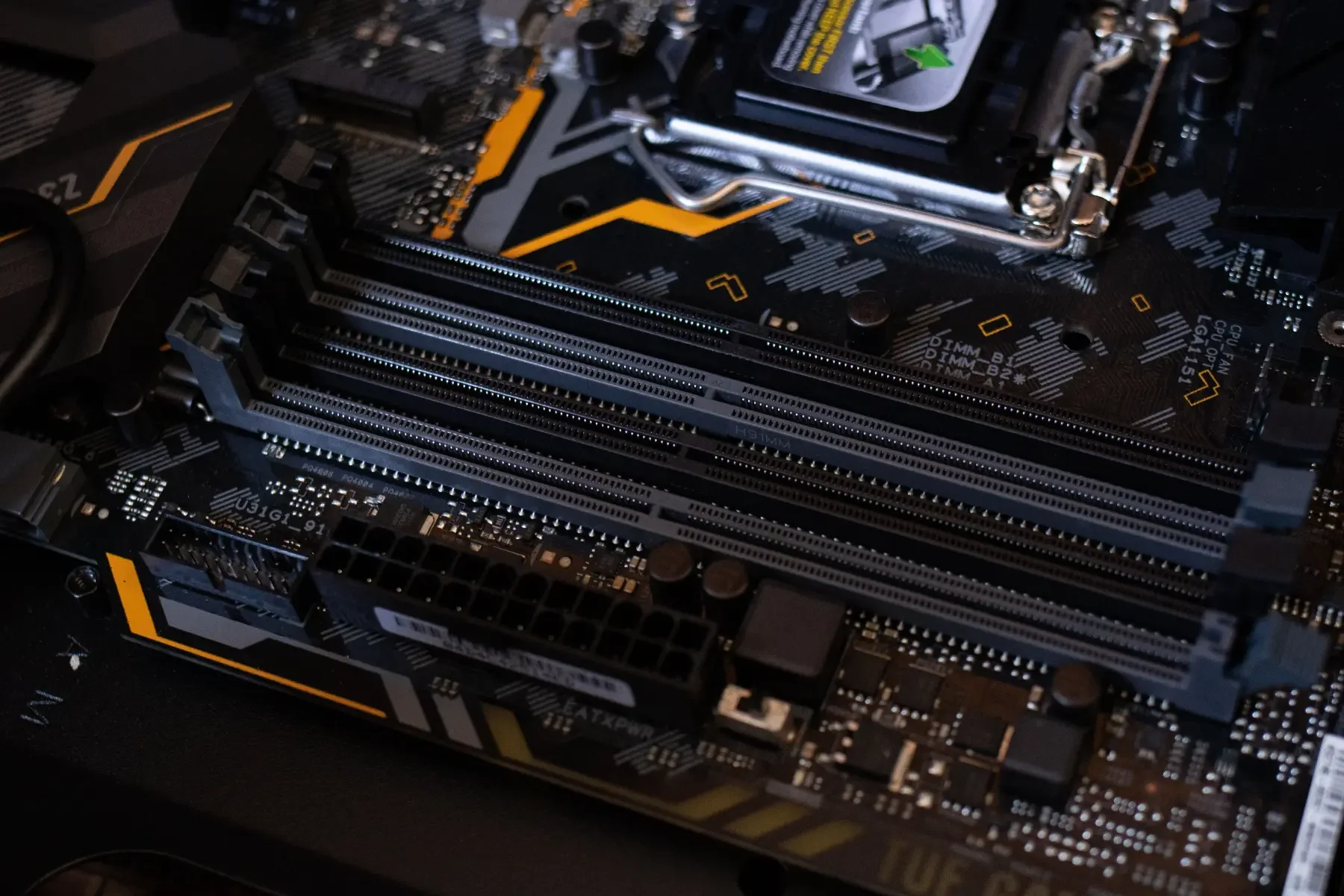
In its February 2026 forecast, Gartner projected that average PC prices would rise 17% compared with 2025, driven mostly by memory and SSD costs. That puts RAM in an awkward spot on the spec sheet. It's the part pushing the price up, and on many laptops it's also the part you can't change later.
A few rules hold wherever you shop:
For most buyers, aim for 16GB on a new Windows laptop or Mac.
Consider 8GB only if your use is light and the price difference matters to you.
On a laptop with soldered memory, buy for the next four or five years rather than for today.
On a desktop with open slots, buy for today and add more later if you outgrow it.
I don't sell computers, so a call before you buy is just advice. Tell me what you're looking at and what you use a computer for, and I'll tell you whether the memory fits. It takes about ten minutes and costs nothing. Once the new machine arrives, my computer setup service moves your files, email, and printer across.
Not sure whether your current computer needs more memory or something else entirely? Call or text (515) 339-8780 for a free consultation. Every call comes to me, whether you're in Clive, West Des Moines, or anywhere else in the metro.
